Connect your quiz to Mailjet
If you use Mailjet to send newsletters or transactional emails, you can now sync quiz participants from Fyrebox automatically to your chosen Mailjet contact list. To get started, you need:
- A Fyrebox account (Pro plan)
- A quiz with a contact form or lead capture screen
- An active Mailjet account with access to the API key and secret
Step 1: Generate an API key and secret on your Mailjet account
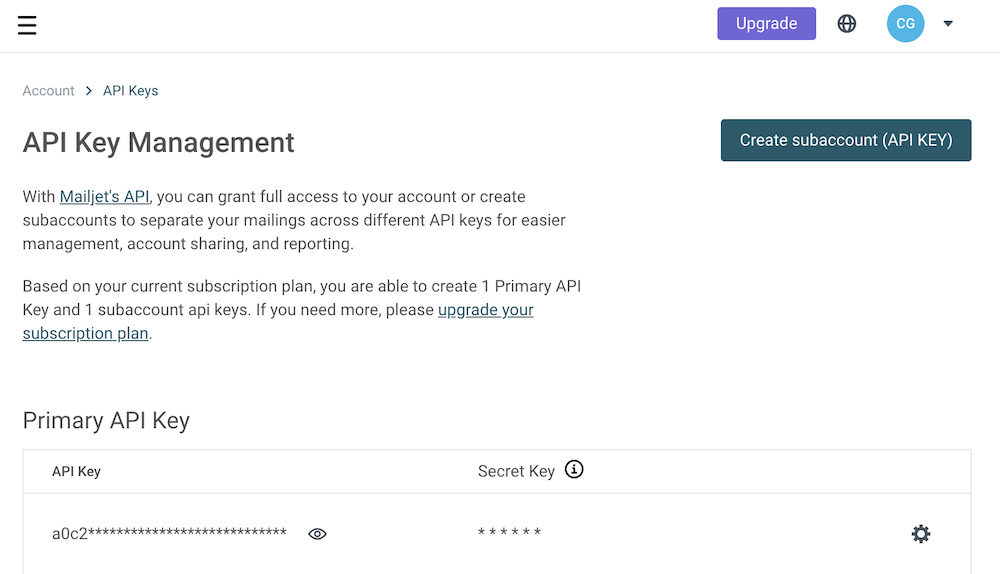
Log in to your Mailjet dashboard, open the Account Settings menu, and select the API Key Management page.
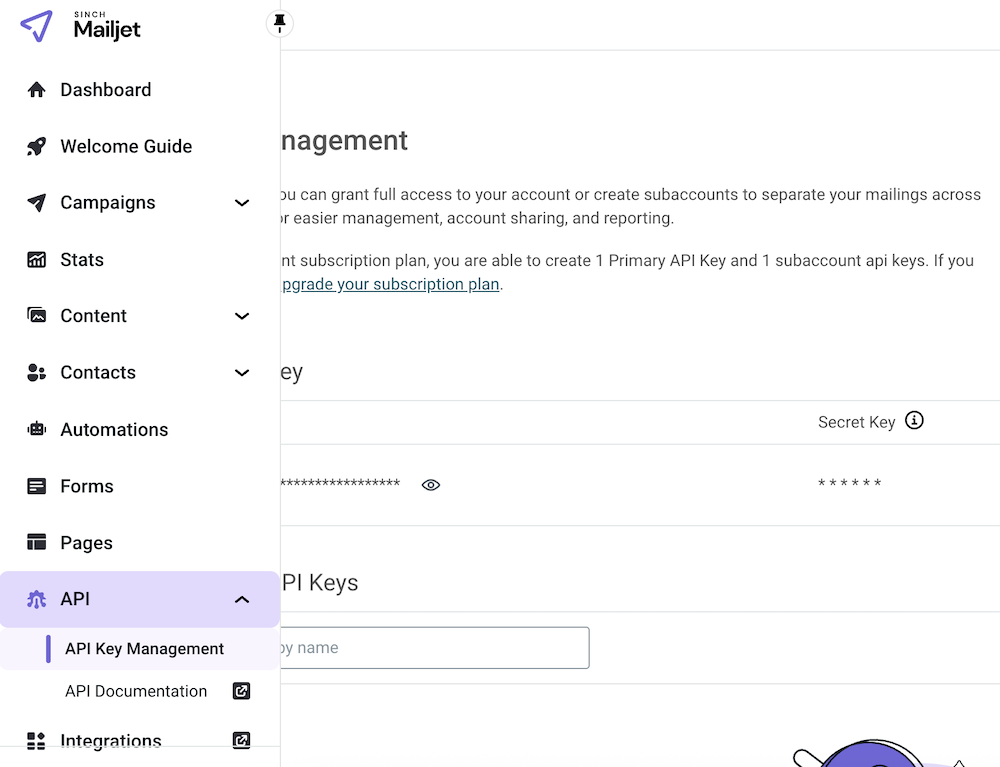
Click Generate a new API key, add a descriptive name, and confirm to reveal both the API key and the Secret key. Store them safely—you will not be able to see the secret again once you leave the page.
Step 2: Connect Fyrebox to Mailjet
Visit the integrations page on your Fyrebox account and locate the Mailjet card.

Paste your Mailjet API key and API secret into the corresponding fields, then click Save. A success message confirms that Fyrebox can talk to your Mailjet account.

Step 3: Choose the contact list for synchronization
Open the content page of your quiz and scroll to the Integrations section. Toggle the Mailjet switch to Yes and select the contact list that should receive new participants.
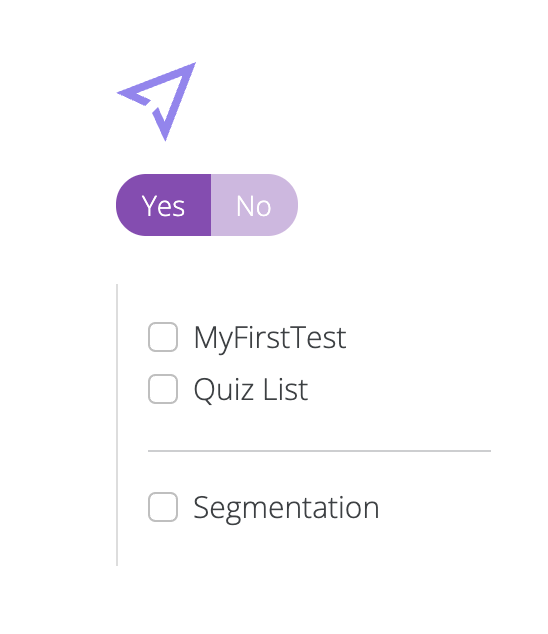
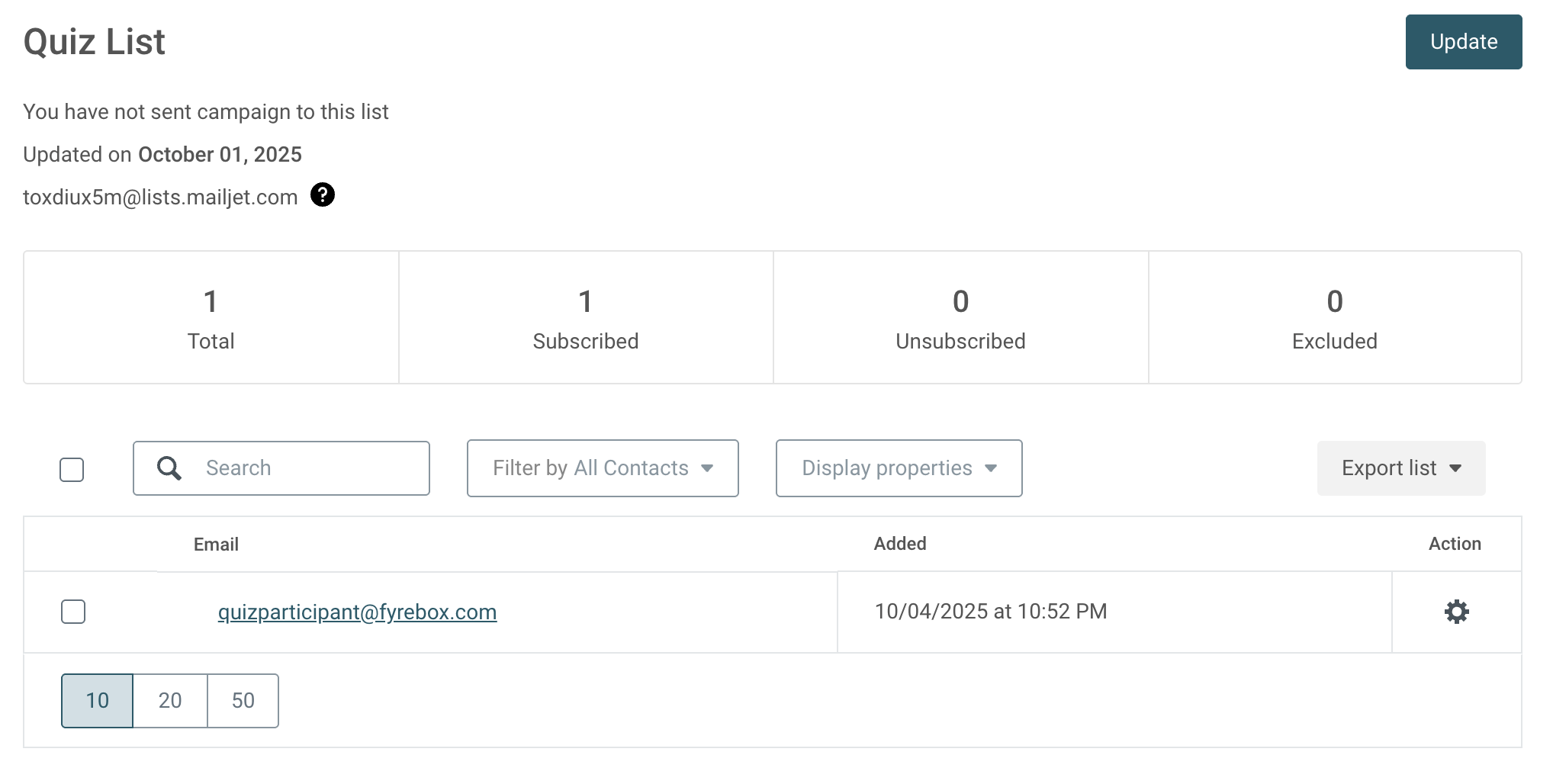
Every participant who submits the quiz contact form will now be sent to the chosen Mailjet list. Their name, email address, and any custom fields you mapped in Fyrebox become available instantly in Mailjet.
If you have never heard of them: Mailjet by Sinch is an all-in-one email platform for teams that helps marketing and development teams design, deliver, and automate email campaigns collaboratively.